


Booking using CSV Import
Uploading CSV File
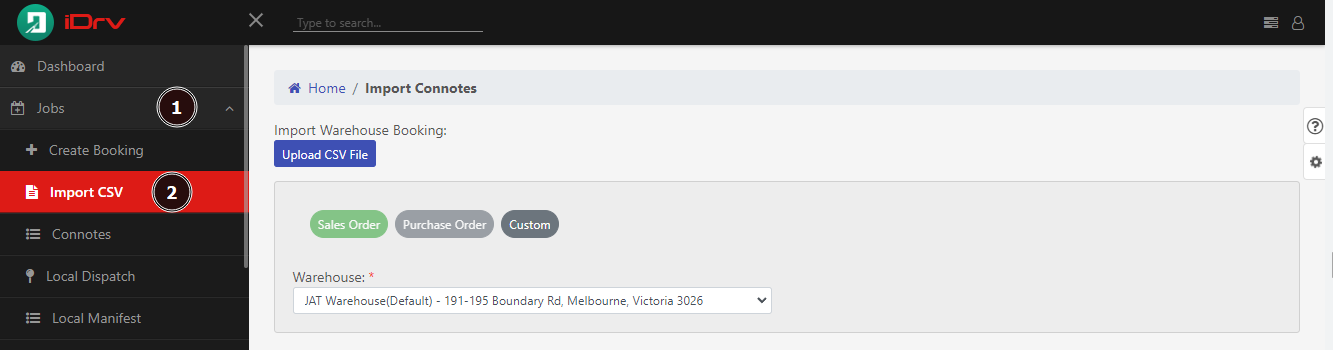
The Import CSV feature can be found in the Jobs component. You may open the attached images below for a clearer view.
-
The page has an Upload CSV File and three order type buttons, namely Sales Order, Purchase Order, and Custom, for selection. The user can also indicate the warehouse address if the order type is either a sales order or a purchase order.
-
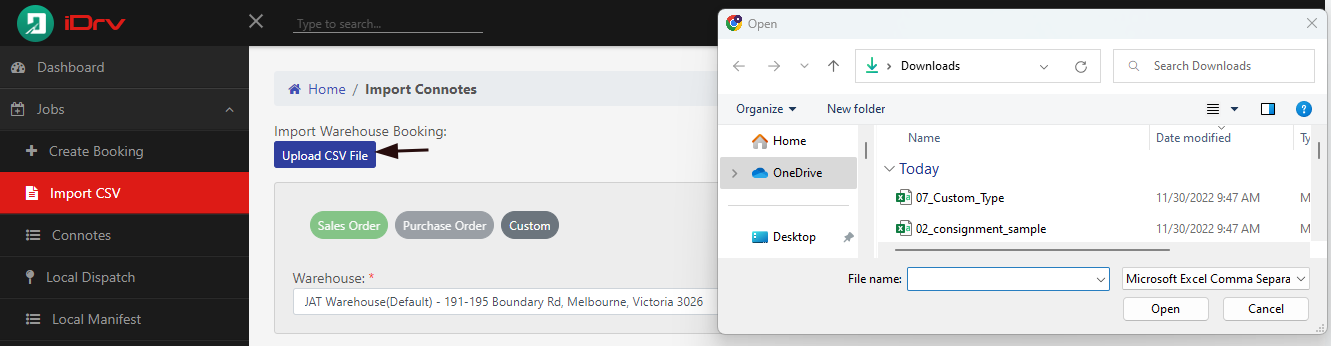
Kindly note that the file format must be in CSV for it to appear in the file manager selection.
-
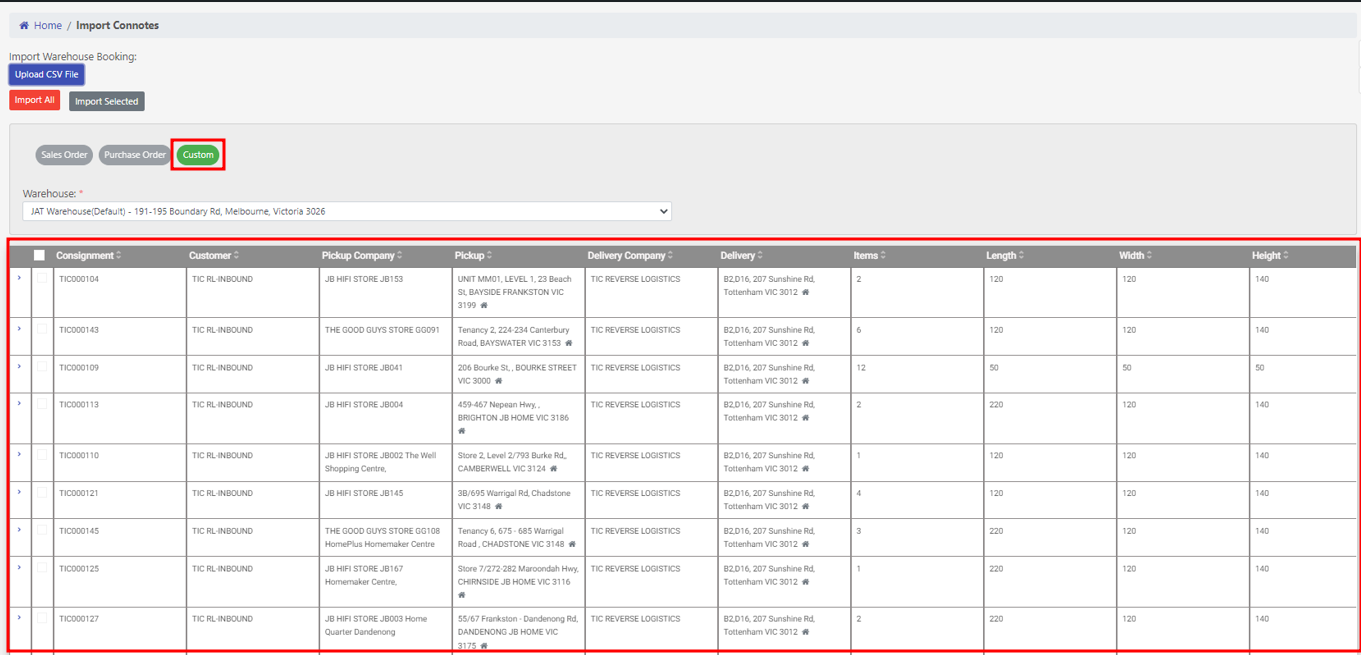
Following the file selection, a data table will be displayed with its corresponding details. If the selected file falls under the custom type, the system will automatically set it, and choosing another type will be disabled. As for sales and purchase orders, the user must manually set them.
-
There are two options when uploading a CSV. One, by Import All. Two, select each consignment by checking the box to the left of it and then clicking Import Selected.
-
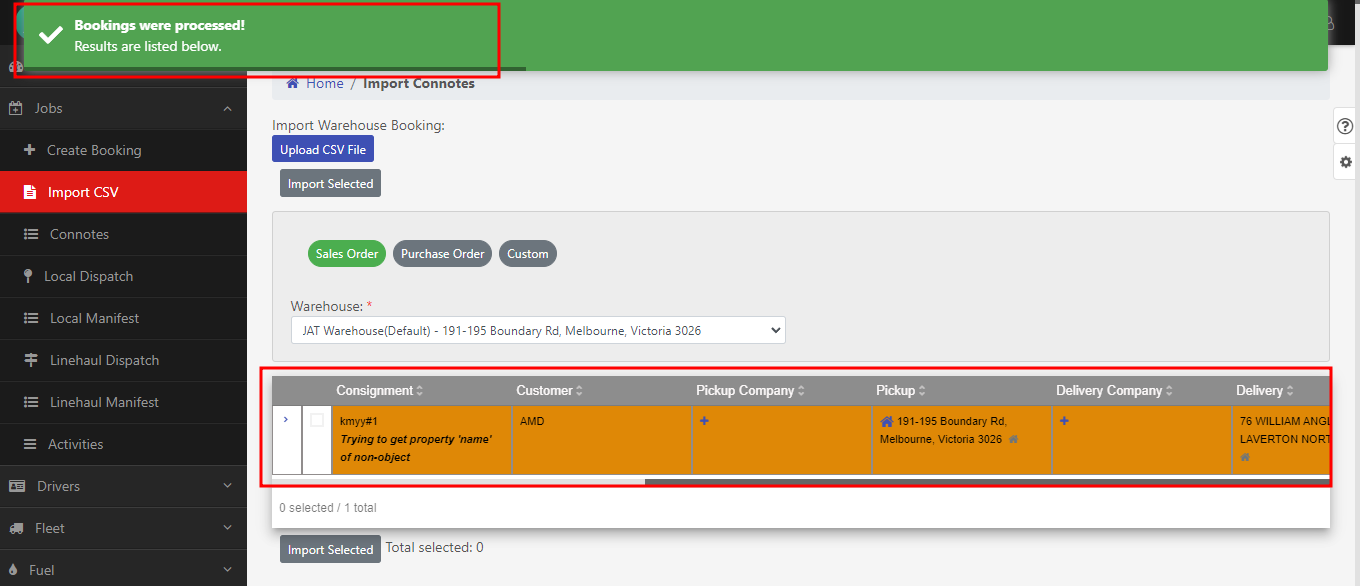
It should be noted that all requirements must be met. Consignment(s) with incorrect data will not push through. A failed booking is indicated by an orange-colored row(s). A warning message will be shown under the consignment column to alert the user. Meanwhile, a colored green row(s) shows a successful booking.
-
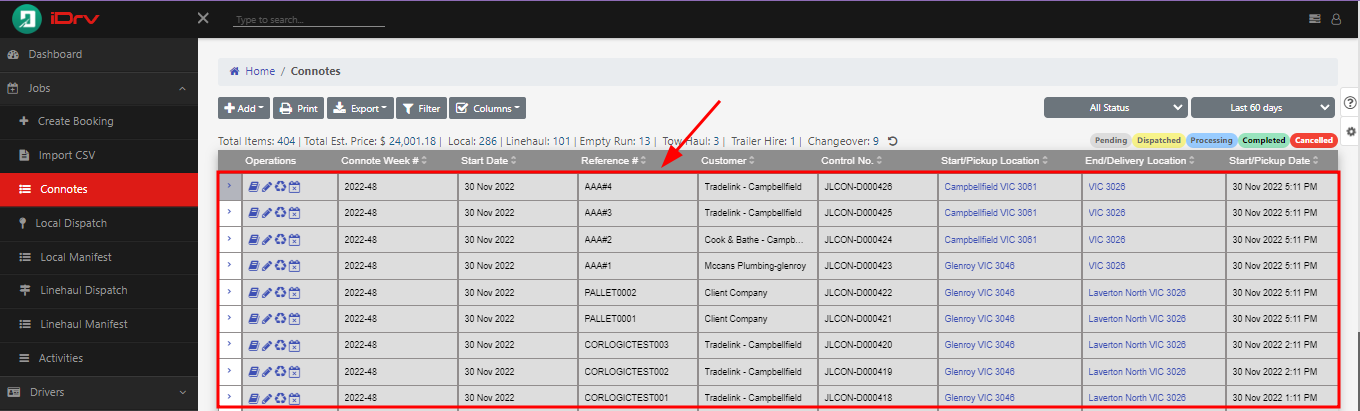
When the importing is completed, user can navigate to Connotes tab found in the Jobs component to check the uploaded consignments. It is advisable to check every detail to avoid human errors. The user can optimize all the available functions found on the Connotes page. You may view, edit, rebook, or cancel.
Dos and Don'ts
For a successful outcome, there are certain rules and limitations that must be met and followed:
Dos
- Fill in all the required columns.
- Input precise and correct details.
- Review the contents before importing.
- Follow the standard column titles to avoid errors.
- Check the uploaded consignments found in Connotes Module after importing.
Don'ts
- Do not include leading spaces or tabs in each cell.
- Do not append unnecessary special character/s.
- Do not submit a file with an existing consignment number.
- Do not forget to set the Order Type before importing.
- Do not place your instructions and notes in the Consignment column.
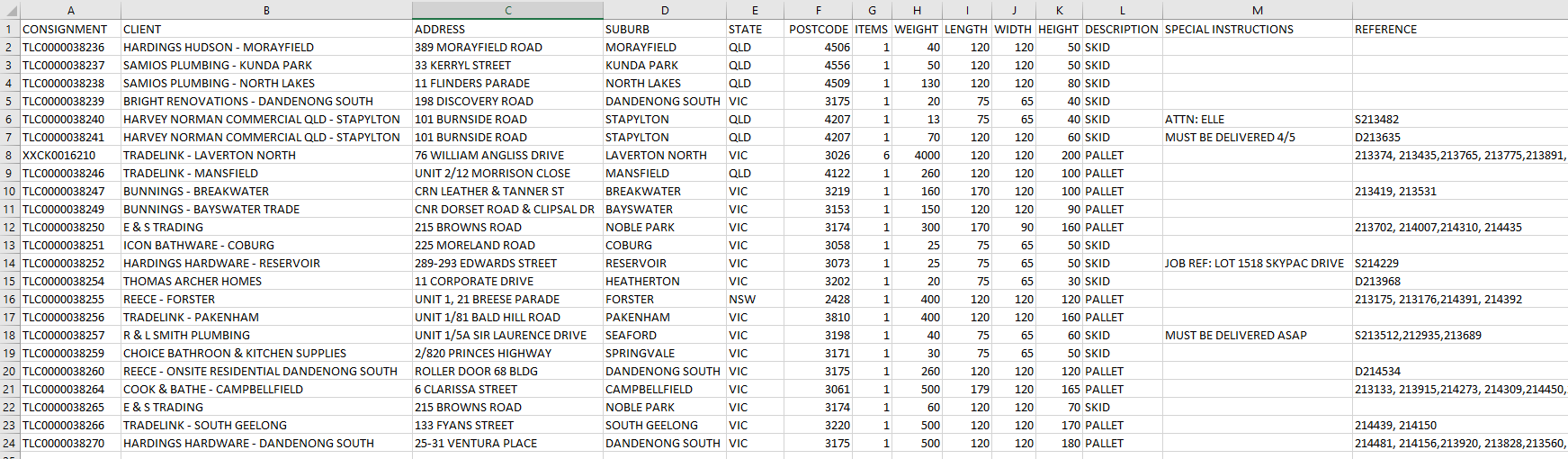
Example of Custom Order Type CSV

Example of Sales and/or Purchase Order Type CSV
Glossary
This part is intended to serve as a glossary of terminology applicable to the Import CSV Feature.
| TERMS | DEFINITION |
|---|---|
| CONSIGNMENT NUMBER | The unique customer reference number that is given to every connote. |
| CLIENT | The customer name for whom the pick-up and delivery job should be completed. |
| COMPANY1 | The company name of the pickup address. |
| ADDRESS1 | The house, building and street number for the pickup address. |
| SUBURB1 | The city or suburb for the pickup address. |
| STATE1 | The abbreviation of Australian state for the pickup address. |
| POSTCODE1 | The postal code for the pickup address. |
| ATL1 | Marks YES/NO if driver has authority to leave pickup site if there is no personnel to sign. Leave blank on csv file or select N/A on TMS Import CSV component if not applicable. |
| PREMISE_TYPE1 | Defines the premise type of the pickup location. Selections are Commercial, Depot and Residential. Commercial is assigned by default. |
| TAIL_LIFT1 | Marks YES/NO if tail lift is used at pickup. Leave blank on csv file or select N/A on TMS Import CSV component if not applicable. |
| COMPANY2 | The company name for the delivery address. |
| ADDRESS2 | The house, building and street number for the delivery address. |
| SUBURB2 | The city or suburb for the delivery address. |
| STATE2 | The abbreviation of Australian state for the delivery address. |
| POSTCODE2 | The postal code for the delivery address. |
| ATL2 | Marks YES/NO if driver has authority to leave delivery site if there is no personnel to sign/accept. Leave blank on csv file or select N/A on TMS Import CSV component if not applicable. |
| PREMISE_TYPE2 | Defines the premise type of the delivery location. Selections are Commercial, Depot and Residential. Commercial is assigned by default. |
| TAIL_LIFT2 | Marks YES/NO if tail lift is used at delivery. Leave blank on csv file or select N/A on TMS Import CSV component if not applicable. |
| ITEMS | The number or quantity of packages to be delivered. |
| WEIGHT | The weight of the loads per packaging type to be delivered. The metric unit is kilogram. |
| LENGTH | The length of the loads per packaging type to be delivered. The metric unit is centimeters. |
| HEIGHT | The height of the loads per packaging type to be delivered. The metric unit is centimeters. |
| WIDTH | The width of the loads per packaging type to be delivered. The metric unit is centimeters. |
| DESCRIPTION | This refers to the type of packaging, which can be carton, pallet, skid, or oversized pallet. |
| SPECIAL INSTRUCTIONS | This is reserved for load restraint reminders, site instructions, safe driving procedures to adhere to, a fatigue management plan to complete, or customers' requests. Administrators can also utilize this for things like paperwork reminders. |
| PRICE | This refers to the rate or value assigned to the company's services. This may differ depending on the pickup and delivery locations. Its currency is the Australian dollar. |
| FUEL LEVY | It is represented as a percentage (%) and refers to the surcharge applied on top of the company's standard transportation charges; it exists to offset the variation in the current fuel cost and is added to the price. This may change each month. |
| SERVICE FEE | It is expressed as a percentage (%) and refers to the customer fee that is deducted from the price of the service. |
| DGTYPE | If package is of dangerous goods category, defines the type, either Packed or Bulk. |
| DGCLASS | Defines the class if package is of dangerous goods category. e.g Explosives, Flammable Gasses, Oxidizing Agents etc. If value is not defined in the database records of DG licenses, categorized as Miscellaneous Dangerous Goods. |